Wednesday, August 10, 2011

How to insert or add URL links inside the gridview?

There are many ways to insert or add links inside a grid. There are many ways to display all the pages in your site in a gridview.
This is one way,
<asp:HyperLinkField DataTextField="Modules" HeaderText="Name" NavigateUrl='<% Bind("URL") %>' />

This the second way to do this,
                                                                    <asp:TemplateField HeaderText="Name" SortExpression="Modules">
                                                                        <ItemTemplate>
                                                                            <asp:HyperLink ID="hlModules" runat="server" Text='<%# Bind("Modules") %>' />
                                                                        </ItemTemplate>
                                                                    </asp:TemplateField>

Then add this code in gridview RowCreated event,

if (e.Row.RowType == DataControlRowType.DataRow)
{
    HyperLink hl = (HyperLink)e.Row.FindControl("hlModules");
    hl.NavigateUrl = "MyPage.aspx";
}

But if you want to open the page in a new window or pop up. You need to put this code in RowDataBound event of the gridview and do like this,
           

if (e.Row.RowType == DataControlRowType.DataRow)
{
HyperLink hl = (HyperLink)e.Row.FindControl("hlModules");
      switch(hl.Text)
      {
            case "FirstPage":
                  hl.NavigateUrl = "javascript:OpenFirstPage();";
            break;                       
            case "SecondPage":
                  hl.NavigateUrl = "javascript:OpenSecondPage();";
            break;                       
 …
      }
}

Of course you need to create the javascript to open a pop up window like this,

<script type="text/javascript" language="javascript">
var winArray = new Array()
function OpenFirstPage()
{
if (!winArray[0] || winArray[0].closed)
      winArray[0] = window.open("FirstPage.aspx", "FirstPage", "width=800,height=600,toolbar=no, menubar=no, directories=no, resizable=yes, scrollbars=yes");
else
            winArray[0].focus();
}
function OpenSecondPage()
{
if (!winArray[0] || winArray[0].closed)
      winArray[0] = window.open("SecondPage.aspx", "SecondPage", "width=800,height=600,toolbar=no, menubar=no, directories=no, resizable=yes, scrollbars=yes");
else
            winArray[0].focus();
}
…
</script>

You may refer to my other post or blog on how to open popup or close all popup windows.

Sunday, August 7, 2011

How to close all windows upon signout?

This solution might not be the exact solution to close all open windows, but it does close all windows upon clicking sign out.
First, you need to create a sign out button on your master page. Then put this code your click event of the button.
Here is the code:
            Session.Clear();
            Response.Redirect("~/LoginPage.aspx");
Second, You need to create a login page. I do not need to put the code for the login page. You can do that.
Third, You need to create javascript that will open each page.
Here is the javascript:
    <script type="text/javascript" language="javascript">
        var winArray = new Array()
        function OpenFirstPage() {
            if (!winArray[0] || winArray[0].closed)
                winArray[0] = window.open("FirstPage.aspx", "FirstPage", "width=800,height=600,toolbar=no, menubar=no, directories=no, resizable=yes, scrollbars=yes");
            else
                winArray[0].focus();
        }
        function OpenSecondPage() {
            if (!winArray[1] || winArray[1].closed)
                winArray[1] = window.open("SecondPage.aspx", "SecondPage", "width=800,height=600,toolbar=no, menubar=no, directories=no, resizable=yes, scrollbars=yes");
            else
                winArray[1].focus();
        }
        function OpenThirdPage() {
            if (!winArray[2] || winArray[2].closed)
                winArray[2] = window.open("ThirdPage.aspx", "ThirdPage", "width=800,height=600,toolbar=no, menubar=no, directories=no, resizable=yes, scrollbars=yes");
            else
                winArray[2].focus();
        }
        function SignOut()
        {
            if (winArray[0] == null)
                OpenFirstPage();
            winArray[0].close();
            if (winArray[1] == null)
                OpenSecondPage();
            winArray[1].close();
            if (winArray[2] == null)
                OpenThirdPage();
            winArray[2].close();
        }
    </script>
Fourth, You need to add attributes to your sign out and button.
Here is the code:
this.lnkUser.Attributes.Add("onclick", "javascript:OpenFirstPage()");
this.lnkTeams.Attributes.Add("onclick", "javascript: OpenSecondPage()");
this.lnkVolunteers.Attributes.Add("onclick", "javascript: OpenThirdPage()");
this.lnkLogout.Attributes.Add("onclick", "javascript:SignOut()");

References used:

Wednesday, July 20, 2011

How to do multiple popup window using ASP.NET 3.5 and AJAX Control and Javascript?

    
There are three ways to popup a new window. The first way to do popup window,
this.lnkNewWindow.Attributes.Add("onclick", "window.open('NewWindow.aspx', 'NewWindow', 'toolbar=no, menubar=no, directories=no, resizable=yes, scrollbar=yes');return false;");
this the second way to do popup window,
<asp:LinkButton ID="lnkNewWindow" runat="server" Text="New Window" onclick="javascript:openNewWindow();” />
Put this javascript inside script tag,
  function OpenNewWindow()
  {
  window.open('NewWindow.aspx', 'NewWindow', 'toolbar=no, menubar=no, directories=no, resizable=yes, scrollbar=yes');
return false;
  }
This is the third way to do popup window,
this.lnkNewWindow.Attributes.Add("onclick", "javascript:OpenNewWindow();");
To close this window just call window.close() like this,
this.btnClose.Attributes.Add("onclick", "window.close()");
If you are doing popup window that has functionality of exporting to pdf or excel with multiview control and updatepanel. You need to put postback trigger. Here is my link.

Here are my References for popup window:

How to export to pdf or excel in ASP.NET 3.5?

Here are my references for export to pdf or excel:
Reference 1
Reference 2
Reference 3
Reference 4
Reference 5
Reference 6

Wednesday, July 6, 2011

How to extract data from site?

Web scraping (also called Web harvesting or Web data extraction) is a computer software technique of extracting information from websites.
Here is the code that extract the content of a specific site,
WebClient wc = new WebClient();
string html = string.Empty;
MatchCollection matches;
string url = string.Empty;
int id = 0;
html = wc.DownloadString(urlPath).Replace("<html>", "").Replace("</html>", "").Replace("<!DOCTYPEHTML>", "").Replace("<head>", "").Replace("</head>", "").Replace("<script>", "").Replace("</script>", "");
matches = Regex.Matches(html, "<a.*?href=\"(.*?)\".*?>(.*?)</a>", RegexOptions.IgnoreCase | RegexOptions.Singleline);
if (destinationList == null)
      destinationList = new List<clsDestinations>();
foreach (Match match in matches)
{
      string matchUrl = match.Groups[1].Value;
      //For internal links, build the url mapped to the base address
      if (match.Groups[0].Value.Contains("travel/landing_page_hotels.cfm"))
      {
            url = MapUrl(urlPath, match.Groups[1].Value);
            if (url.Length > 0)
            {
                 destination = new clsDestinations();
                 id += 1;
                 destination.ID = id;
                 destination.Url = url;
                 destination.CityName = match.Groups[2].Value;
                 if (!destinationList.Exists(d => d.CityName == destination.CityName))
                       destinationList.Add(destination);
             }
      }
}
                foreach(clsDestinations cy in destinationList)
                {
                    if (!cityBll.CheckForDuplicateCity(cy, false))
                        result += cityBll.InsertCity(cy); 
                }
Here are the references that I have used:
Once you have the data in your collection. Then you can save them one by one like this,

Sunday, July 3, 2011

How to Create a Simple Drop-Down List in MS Excel 2007?

This post is derive from this link. This post is done in microsoft excel 2007.
1.
Click on the cell in the workbook where you want your drop-down list to appear. Cell A3 is active in the image to the left (click image to enlarge it).
2.
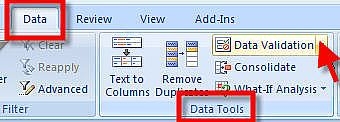
Click the Data tab, and on the Data Tools menu, click on Data Validation. The Data Validation dialog box will appear.
3.
On the Settings tab, below Allow, click the down arrow and select List.
4.
For a simple list, type the items in the Source box in the order you want them to appear in the drop down, separating them by a comma as shown is the image. Click the OK button.
5.
Now, at the insertion point, you can click the down arrow to display the options, clicking on one to select it.


References:
http://www.ehow.com/how_4535524_simple-dropdown-list-ms-excel.html#ixzz1R7FQFMg

Thursday, June 23, 2011

How to upload and download files thru FTP Server?


I have use several references in creating this window application. I have somehow simplified it and extract codes from the references that I have used. There is only three buttons, they are upload, download and close. The upload button is used to copy file to ftp server. In short You are transferring or copying your local file to ftp server. The download button is used to get file from ftp server to your local folder or machine. The close button is used to close your application.

Here is what the application looks like,


Here is my code

Here are my references that I have used in this blog:
Code Project
C# Corner
Code Guru
MSDN Microsoft
ondotnet

Monday, June 20, 2011

How to create simple dynamic window form application?

I have created a window form that will generate two textbox, one combobox, one datepicker, and four label. This form does not connect to any database. The purpose of this application is to show how to create controls at runtime.

Tuesday, June 14, 2011

How to create code generator for your data objects, data access layer and business access layer?

This post of mine shows how I create DAL, BAL, Data entity objects, interface. This code generator will generate code for this .cs file.
First, this is how it looks like when you are creating DAL,
Second, this is how it looks like when you are creating BAL,
Third, this is how it looks like when you are creating data entity objects,
Fourth, this is how it looks like when you are creating the interface,

Here is the code,
if you wish to see the actual code, go to this link

.